Servicenow, 2025
KEYBOARD SHORTCUTS
A case study on improving agent efficiency through structured keyboard shortcut design
UX Research
Interaction Design
User Testing
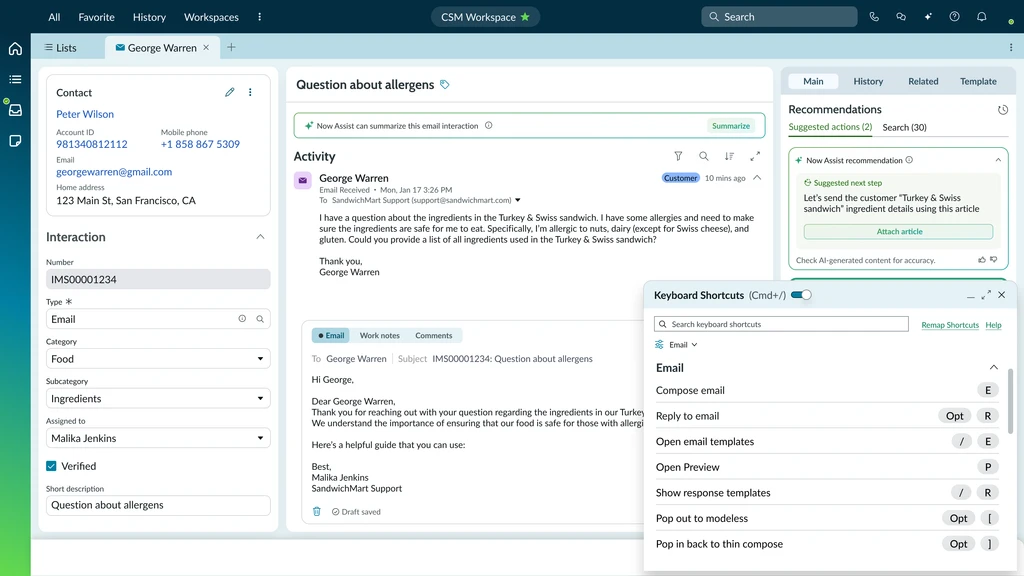
The Problem
Too Complex
Three-key combinations that felt random and inconsistent. Busy agents don't have time for keyboard Twister.
Hidden Away
Buried in menus instead of surfaced where needed. Out of sight, out of mind.
Constant Conflicts
Shortcuts clashed with browser commands, creating chaos and unpredictability.
Usage insights
Seconds lost per action
Agents bounce between different parts of the screen case details, notes, comments, emails reaching for the mouse each time, breaking their flow.
Hundreds of clicks daily
Repetitive actions performed dozens of times daily. Each mouse click is a micro-delay that compounds into hours of lost productivity.
Unheard and unused
Keyboard shortcuts existed, but they were so complicated and hidden that nobody bothered learning them. A shortcut to nowhere.
💬
Agent Quote
"You can build the most powerful tools in the world, but if nobody knows they exist, they might as well be invisible."
The Solution
Guiding principles
Curated from Apple, Microsoft, and UI standards
Consistency across actions
Eg: Copy/Paste/Cut/Undo - Windows: Ctrl + C / Ctrl + V / Ctrl + X / Ctrl + Z and Mac: Cmd + C / Cmd + V / Cmd + X / Cmd + Z
Mnemonic & Discoverability:
•
Mnemonic Keys:
Choose letters that relate directly to the action (e.g., N for New, E for Email)
•
Cheat Sheet Access:
Use Ctrl + / (or equivalent) to display a full list of shortcuts in-app
•
Tooltips:
Display shortcuts next to menu items or action buttons for immediate reference
Modifiers usage:
•
Single Modifier + Letter:
Simple and mnemonic (e.g., Ctrl + C for Copy)
•
Two Modifiers:
Use when extra protection is needed (e.g., Ctrl + Shift + )
•
Three Modifiers:
Reserved for advanced actions to prevent accidental triggers
Accessibility:
•
Focus Management:
After a shortcut, ensure the focus is moved to the logical next element
•
ARIA & Tab Order:
Maintain clear, predictable keyboard navigation for all users
Customization:
•
Consider allowing users to
remap
shortcuts for improved personal workflows.
Competitive Landscape observation
Atlassian, Salesforce, and other industry leaders were already using mnemonic shortcuts successfully.
The Three-Pillar Strategy
1. Make Them Visible
Display shortcuts in tooltips right where people are working. No more hunting through menus.
Example:
E
Send Email
2. Provide Safety
Give users an escape hatch. Press ESC to exit shortcut mode and return to normal typing.
Safety mechanism:
ESC
Exit mode
3. Enable Customization
Let users remap keys to fit their workflow. One size doesn't fit all.
User choice:
Customize any shortcut
⚠️
High-Risk Actions
For example, actions that could cause data loss or irreversible changes would require more modifiers to minimize accidental triggers.
Example:
Shift + Alt + Delete
⚡
Low-Risk & Frequent Actions
Would have simpler, single-key shortcuts to support quick and effortless execution.
Example:
N
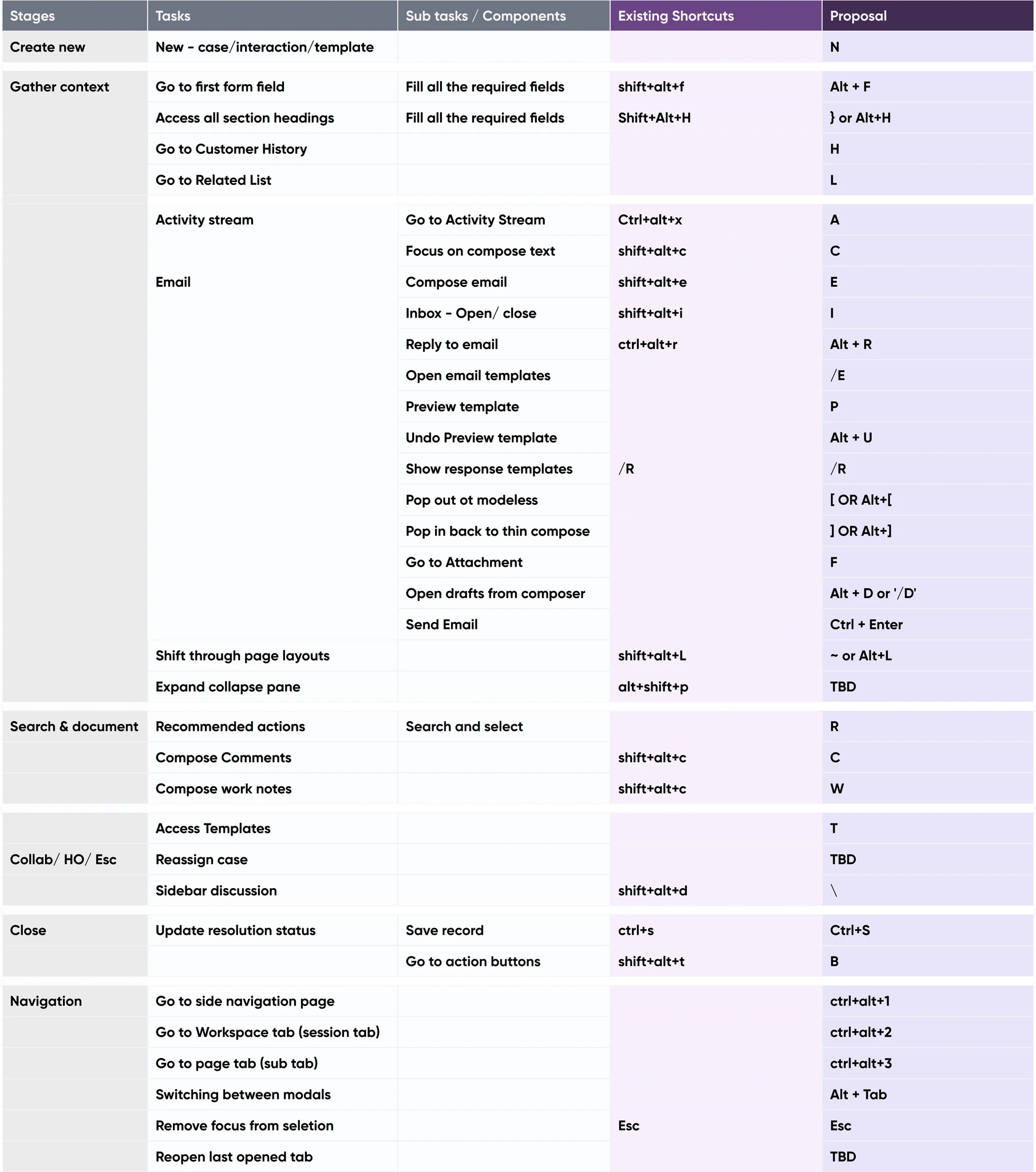
Simple, Intuitive, Memorable
E
W
Work
N
New
C
Comment
P
Preview
The Bigger Picture
We usually think of designers as people who create perfect, polished tools. But what if the real job is to create flexible systems
Key Takeaways
Visibility Beats Complexity
The most powerful feature is useless if no one knows it exists. Surface tools where
users need them.
Test With Real Users Early
Perfect on paper doesn't mean perfect in practice. User fears and habits are just as important as efficiency gains.
Flexibility Over Perfection
Instead of finding the one perfect solution, build systems that adapt to individual needs
and preferences.
Small Changes, Big Impact
The difference between Ctrl+Alt+E and just E seems tiny, but it's the difference
between friction and flow.